by Mike Brogan | May 17, 2022 | Business Tips, How To..., Teach Me About..., Websites & Blogs
I’m often asked, by customers with websites, if I can do some optimization to increase the traffic they are getting from search engines because they are not receiving enquiries from the site. I can always make changes that will increase traffic from search engines....
by Mike Brogan | Apr 25, 2022 | Business Tips, How To..., Teach Me About..., Websites & Blogs
Have you ever wondered how websites work? This is the first in a series of posts aimed at explaining what’s involved in designing, building, and running a website. These posts are aimed at people who want to have a website developed. They want to understand the...
by Mike Brogan | Feb 20, 2017 | All, Business Tips, How To..., Teach Me About..., Uncategorized
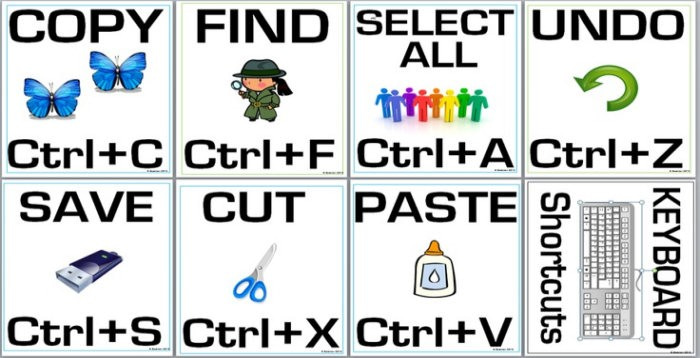
I posted this article a couple of years ago but I thought it would be a good idea to post it again since there are some extremely useful tips it. Many people are unaware that they can use a keyboard to do many of the operation that they do with a mouse or finger on a...

by Mike Brogan | Jan 16, 2017 | All, Business Tips, How To...
I use my laptop, most of the time, to send and receive email. I also use my smartphone to keep an eye on new emails when I’m out and about. If you need to do this you may have wondered what the best way to set up email on the two devices is. Here’s what I have done....

by Mike Brogan | Sep 21, 2015 | All, Business Tips, How To...
Is my site listed in Google? That’s a question that I often get asked by clients after their websites have recently gone live.Take the following situation.Your new business has been in operation for a couple of months. Trade has been good and now that your new website...

by Mike Brogan | Sep 7, 2015 | All, Business Tips, How To...
Does IT drive you crazy? Do find yourself wanting throw your laptop out of the window? I certainly do from time to time but, unfortunately, we have no option. IT is now an integral part of doing business today so we may as well try to make the most of it.To this end...
